Frequently asked questions
What are the key features and benefits of the myToyota Connect app?
App features and benefits*:
- Create & maintain your Connected vehicle profile
- Enrol for Connected Services subscriptions and manage your subscriptions
- View your fuel level and odometer
- Customer Driver Settings[CS11]: Set and receive customer driver notifications. E.g. speed, curfew
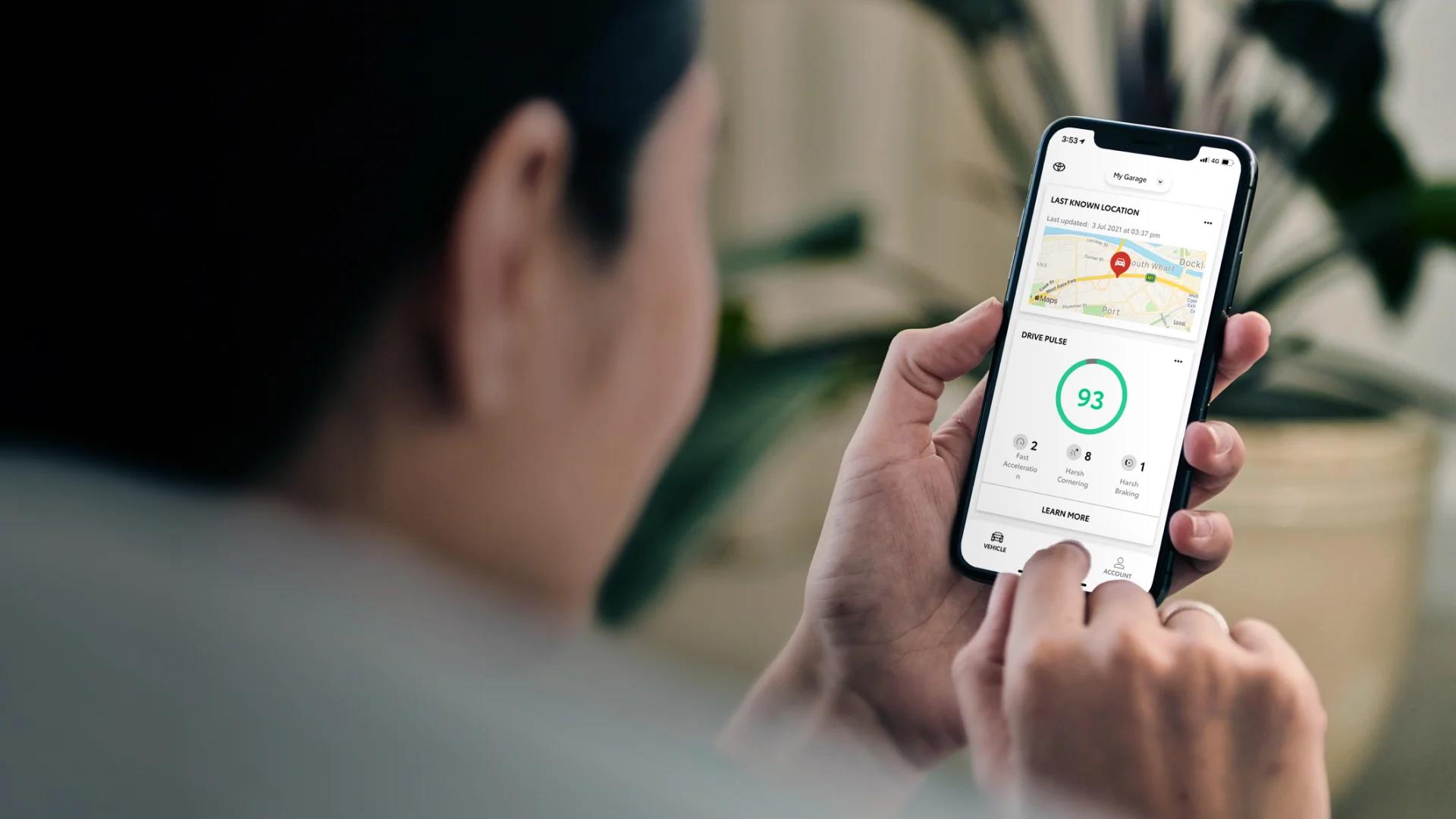
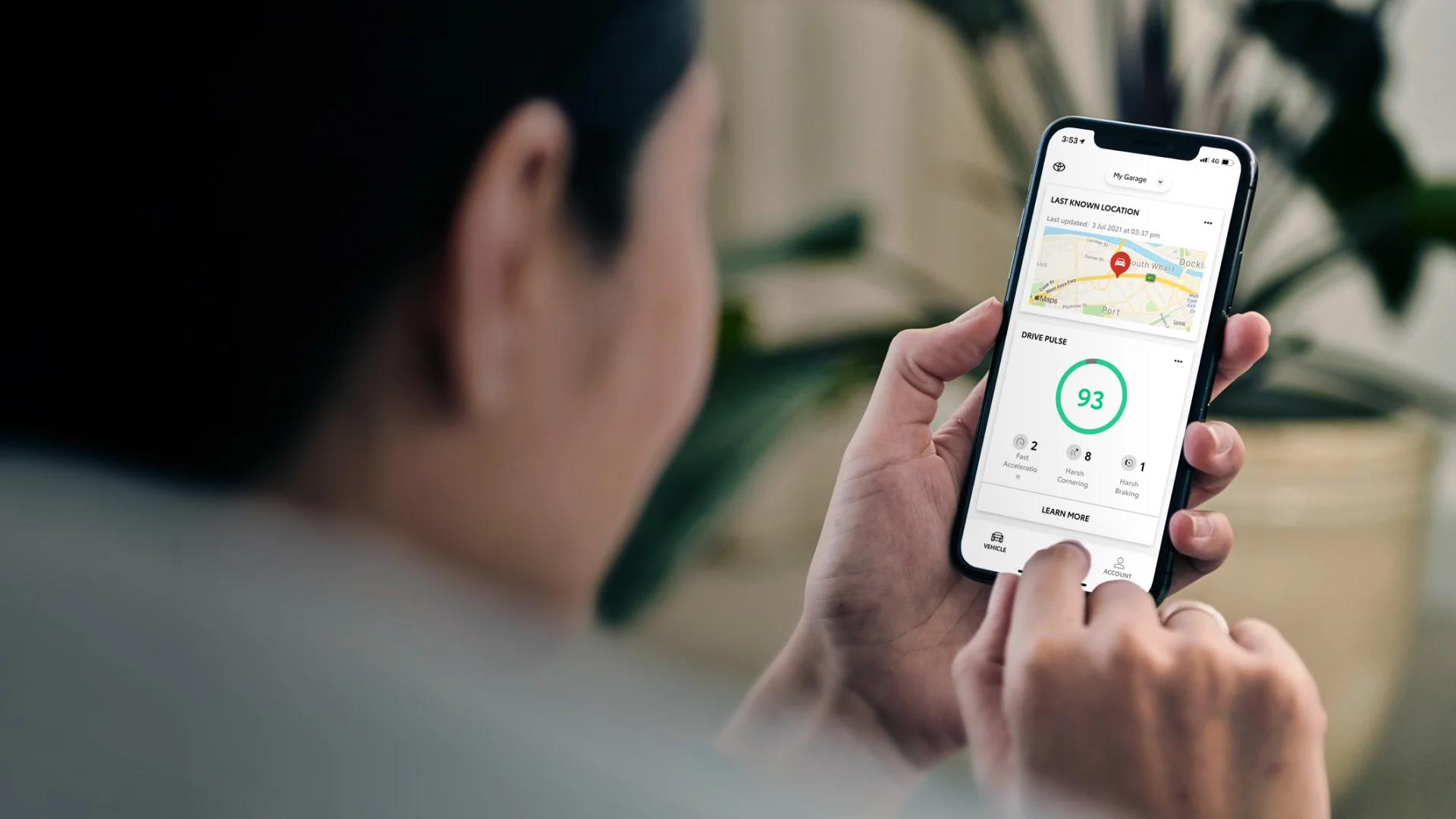
- Vehicle Locator[CS5]: Easily find your vehicle’s recent location. E.g missing or forgot location (Subject to GPS reception)
- Drive Pulse: Insights on driver acceleration, braking and cornering behaviour[CS8]
- Recent Trip: Review your last 10 trip details[CS7]
- Vehicle Status: View the status of your vehicle e.g. Window’s open/closed
- Vehicle Alerts: Receive notifications of your vehicle’s state e.g. if you left your doors unlocked
- Add your preferred dealer
* Vehicle features vary by model and not all vehicles will have all features, to view your vehicles specific myToyota Connect features and inclusions, simply visit: toyota.com.au/mytoyota-home/connect-overview
myToyota Connected Services are subject to certain restrictions and inaccuracies which are beyond the control of Toyota, including availability of the telecommunications mobile network and GPS location positioning[TL1]
Operational service quality and accuracy are limited to the reception and transmission of data supporting myToyota Connected Services. Dependent on the 3G/4G enabled DCM, GPS signal strength, mobile network coverage through the Telstra network and other factors outside Toyota’s control which can limit the ability or functionality of the system. Mobile usage at user’s cost. Features subject to change.
How do I finalise app setup and activate Connected Services?
To activate your Connected Services, you will need to register and setup your myToyota Connect app account. The first thing to do is to confirm your vehicles Connected Services applicability and features, visit: toyota.com.au/connected/compatibility
Following setup process should take 2-5 minutes
Step 1:
Download app and Register your Account
- Download the myToyota Connect app from the relevant app store (Apple App Store®*/Google Play™**) the app will guide you through the steps to register, enrol and activate the services. The setup process can also be reviewed in “Demo Mode”, via the apps welcome screen.
- During the registration process within the app, you will automatically receive a 6-digit verification code to your email. To complete registration, enter this code into the app when prompted.
You have now successfully registered your account!
Step 2:
Setup app and Add Vehicle
- Ensure the myToyota Connect app is open and logged in (check that Bluetooth is enabled)
- From the app home screen (My Garage), select ‘Add Vehicle’.
- Select and add VIN manually or by scanning VIN (Instructions of VIN location in app screen)
- Tap the device camera access prompt and select either text or barcode (located top right) ‘Continue’. (ADD VEHICLE)
- Vehicle Details (Screen) Add nickname and preferred dealer and set your Dealership; review vehicle connected capabilities. Select ‘Continue’
- The app will then present the available services on the vehicle. Select ‘Continue’.
- At the Connected Services Agreements screen press ‘Accept’.
- When complete, the app will confirm trial activation. Select ‘Finish Setup’ to go back to the myToyota Connect app home screen. (Subscription) Select ‘Continue’
- Home screen – status now ticked – (view status green) ‘Congratulations’
- Tap bottom tab ‘Finish setup’
- In the Connected Activation dashboard tap “Activate Connected Services”
- Let’s Connect tap “Let’s get started”
- Step 1 Turn vehicle ignition on
- Step 2 Enter Odometer reading into the app ‘Continue”
- Connected activation complete > Back to Dashboard
Your myToyota Connect app is now setup!
* App Store® is a trademark of Apple, Inc. registered in the U.S. and other countries.
** Google Play™ is a trademark of Google LLC.
Where do I find my Vehicle Identification Number (VIN)?
Your vehicle’s unique VIN is a 17 digit alphanumeric code, and can be found in the following locations:
1. On the driver’s or passenger’s side door jamb
2. On the lower right corner of the dashboard by looking through the windshield
3. Printed on your vehicle’s registration certificate or retail delivery card located inside Service & Warranty booklet
4. In the index at the back of the Owner’s manual.
Does the app use my mobile phones data. e.g. data plan?
Yes, all data costs associated with the use of the myToyota Connect app is the responsibility of the user.
How do I delete my vehicle (unlink VIN) from my account?
You can delete a vehicle from an account using the Remove Vehicle button at the bottom of the ‘My Garage’ menu in the app.
If you experience any issues, please provide us with feedback within the profile section of the app or by contacting the Toyota Customer Assistance Centre on 1800 869 682 between Monday – Friday 9:30am-5:30pm or email: connected.enquiries@toyota.com.au
I am unable to sign in to the myToyota Connect app?
Steps:
Sign in error
- Please check your email and password are correct
- You can reset your password at the sign in screen by clicking “Reset It”.
VIN error
- Verify the VIN entered is correct and is a valid 17 digit alphanumeric code.
- If you have just purchased a used or demo vehicle please contact your Toyota dealer for further assistance.
Your Toyota Dealer is the first point of contact for initial myToyota Connect app registration and setup queries.
You can provide us with feedback within the profile section of the app or by contacting the Toyota Customer Assistance Centre on 1800 869 682 between Monday – Friday 9:30am-5:30pm or email: connected.enquiries@toyota.com.au.
When I enter my VIN I am getting an error message. ‘This VIN is associated with another account.
Steps:
Sign in error
- Please check your email and password are correct
- You can reset your password at the sign in screen by clicking “Reset It”.
VIN error
- Verify the VIN entered is correct and is a valid 17 digit alphanumeric code.
- If you have just purchased a used or demo vehicle please contact your Toyota Dealer for further assistance.
Your Toyota Dealer is the first point of contact for initial myToyota Connect app registration and setup queries.
You can provide us with feedback within the profile section of the app or by contacting the Toyota Customer Assistance Centre on 1800 869 682 between Monday – Friday 9:30am-5:30pm or email: connected.enquiries@toyota.com.au.
Who do I contact if I have an enquiry or concern related to the myToyota Connect app or my account?
You can contact the Toyota Customer Assistance Centre on 1800 869 682 between Monday – Friday 9:30am-5:30pm or email: connected.enquiries@toyota.com.au
For further information visit: toyota.com.au/connected
Where can I find the Ampol Foodary offer?
The Ampol Foodary offer is only available on the myToyota Connect app. Find out more here.
How do I redeem the Ampol Foodary offer?
Open the myToyota Connect app, go to the Ampol Foodary Offer, and display the QR code to an attendant at a participating Ampol station directly from the app.
How do I disable the automatic myToyota pop-up on my iPhone when the Bluetooth® is on, and my car is switched on?
- Turn on your vehicle.
- On the head unit, tap “Menu”, then “Setup”.
- Scroll to the left-hand side of the menu, then tap “Toyota App Suite”.
- Tap “Auto detect iPhone app” to turn off the option, then tap “Ok”.
These steps will disable the automatic pop-up.
How do I delete my myToyota Connect account?
Please contact us via:
1800 869 682
connected.enquiries@toyota.com.au
Monday – Friday
9:00am – 5:30pm AET
Please ensure you have cancelled any active paid subscription package(s) prior to requesting account deletion.
You can cancel your subscription by using the myToyota Connect App. You can also cancel via our Connected Call Centre on 1800 869 682.
To cancel your subscription in the myToyota Connect App, please follow these steps:
1. Open the myToyota Connect App and navigate to ‘myGarage’.
2. Select ‘Subscriptions’.
3. Locate the package you wish to manage and select it.
4. Tap on the option to cancel the subscription.